SEO

Google Business Profile Christmas & New Year Opening Hours: 2026–2027

SplashSol • Practical 2027 planning

Published 24 November 2026 · Examples are labelled · Sources below

Quick answer

Use Special hours for short Christmas and New Year changes, including days when you are closed. Keep your regular hours intact. If the business will close for seven days or more, check Google’s temporary-closure guidance first.
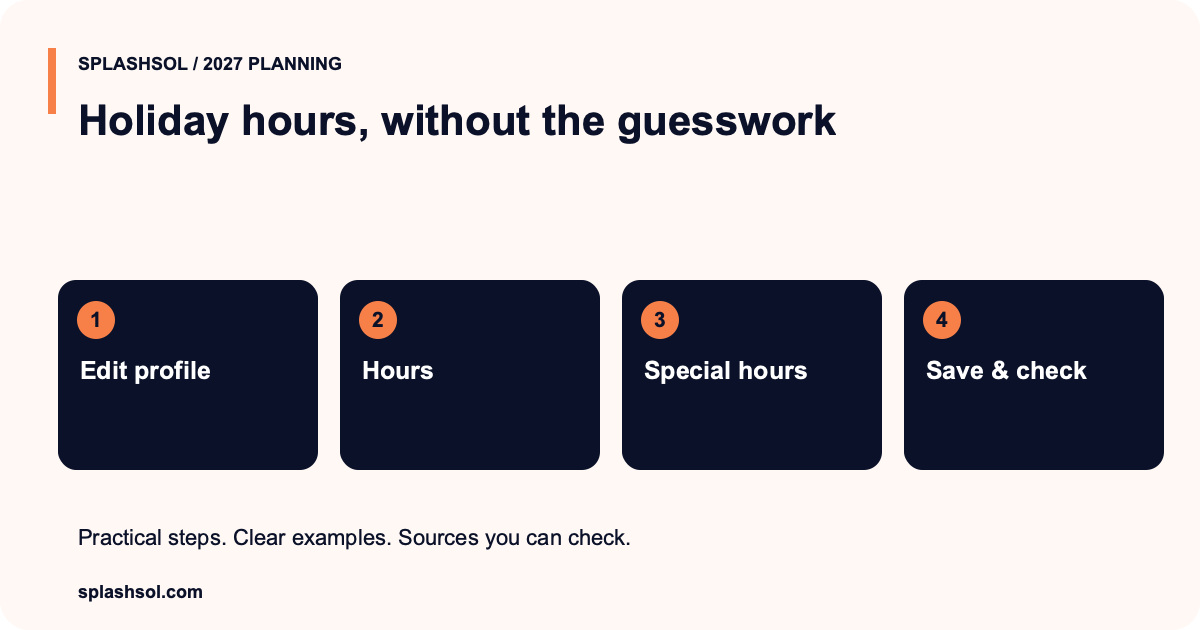
Google Business Profile Christmas & New Year Opening Hours: 2026–2027 — Edit profile, Hours, Special hours, Save & check
An original step guide, not a screenshot. The layout in your Google account may differ.
On this page

Set the dates before customers make plans

A customer standing outside a closed shop rarely cares that the opening hours were correct last month. Decide your Christmas timetable, put it in one place, then update Google, your website and the messages people receive when they enquire. This guide covers Christmas 2026 and the start of 2027, with a Scottish example.

Special hours, regular hours or temporarily closed?

Choose the right kind of hours update
Situation Use Check before saving
Different hours on a particular day Special hours Enter the actual opening and closing times for that date.
Closed for up to six consecutive days Special hours: closed Mark every affected date; do not erase the normal weekly timetable.
Closed for seven days or more, or indefinitely Temporarily closed Read Google’s closure guidance. Mark the business open again when you resume.
New weekly timetable that will continue Regular hours Change the normal schedule, then check any existing special dates.
A particular service has different times More hours, if available Use the appropriate service category; this does not replace holiday special hours.

Google recommends confirming holiday hours even when they match your usual opening times. Special hours require regular opening hours to be set. If your business is appointment-only or is not suited to published main hours, check the profile’s available options rather than inventing a timetable.

How to add holiday opening hours

  1. Sign in to the Google account that manages the business. Find your Business Profile in Google Search or Maps and choose Edit profile.
  2. Open Hours, then Special hours. Labels and layout may differ slightly by device.
  3. Choose a suggested holiday or add a date. Enter the hours, or mark the business closed for that day.
  4. For split opening periods, add each session. Check the date carefully when a closing time runs past midnight.
  5. Save. Reopen the settings to check the saved dates, then view the public profile when the change appears.

Worked example: a Scottish salon

The following is a fictional salon’s decision, not a recommended closure pattern. It usually opens Tuesday to Saturday and closes on Mondays. The owner has chosen to reopen on Tuesday 5 January.

Example special-hours worksheet
Date Salon’s chosen hours Why it needs checking
Thu 24 Dec 2026 09:00–14:00 Earlier closing than the regular Thursday hours.
Fri 25 Dec Closed Christmas Day.
Sat 26 Dec Closed The salon has chosen to close on Boxing Day.
Mon 28 Dec Closed Scottish substitute bank holiday; normally closed anyway.
Thu 31 Dec 09:00–13:00 Short New Year’s Eve session.
Fri 1 Jan 2027 Closed New Year’s Day.
Sat 2 Jan Closed Owner’s chosen closure.
Mon 4 Jan Closed Scottish substitute holiday for 2 January.
Tue 5 Jan Normal hours Check booking slots and phone messages agree.

A bank holiday does not automatically decide a business’s trading hours. Use the dates as a planning prompt and publish the schedule you will actually keep. If your chosen closure becomes seven consecutive days, revisit the temporary-closure rule instead of copying this short-closure example.

Check more than the Google listing

  • Put a short, dated notice near the contact or booking form, with the reopening date and likely reply time.
  • Check online booking availability, social profiles, delivery and collection information.
  • Update voicemail and automatic email replies. Do not promise emergency cover unless somebody is assigned to it.
  • Ask a colleague to check the public profile and complete a test enquiry.
  • Add a reminder to remove the notice and test the normal timetable after reopening.

Use our Christmas closure and enquiry reply templates for the message itself. For the rest of the profile, work through the Google Business Profile optimisation guide.

Prepare one timetable before editing any accounts

Start with a small table that somebody in the business can approve. Include each affected date, whether customers can visit, whether appointments or collections are available, and when somebody will answer enquiries. Those can be different things. A restaurant may serve dinner on New Year’s Eve but stop taking telephone bookings earlier. A plumber may pause routine appointments while offering a separately staffed emergency service. The public information needs to explain that difference clearly.

Check the timetable with the people doing the work. Ask about staff leave, supplier deliveries, booking availability and any collection deadlines. An owner’s intended opening time is not useful if the booking system offers a different time or the only person holding the keys is away. Keep the approved version somewhere accessible, with a named person responsible for changing it if plans move.

Use full dates in the working document. “Closed Monday” becomes ambiguous when a notice stays online into the next week. “Closed Monday 28 December 2026” can be checked without interpretation. Record the reopening time as well as the day, especially if the first morning back is reserved for existing appointments.

Check overnight trading and split opening periods carefully

Hospitality hours need particular care around midnight. Suppose a fictional café opens from 09:00 to 13:00 on 31 December, then reopens for an evening event from 19:00 until 01:00. That is not one uninterrupted trading session. Write the sessions down separately before entering them into Google. Then check what the public profile displays for both 31 December and 1 January.

Google’s special-hours instructions explain how to add multiple periods and deal with hours extending into the next day. Follow the current instructions shown for your situation. Do not enter a single set of hours longer than 24 hours, or assume that a late-night closing time will leave the following day’s normal timetable untouched.

The same principle applies to a shop that closes for lunch, a salon with a short morning session, or a business that offers collection only in the afternoon. Record the actual customer-facing sessions. If a website booking widget is responsible for appointments, change that diary separately; editing Google does not automatically close those slots.

A separate plan for businesses that work by appointment

An appointment-only business should explain availability without creating the impression that customers can arrive whenever the profile says “open”. Check Google’s rules and the hours options available for your type of business. Keep appointment requirements obvious on the website and on the booking page. A profile setting cannot explain every condition attached to a specialist service.

For example, a fictional beauty business might accept online appointment requests throughout the holiday but have nobody reviewing them until 5 January. Its website can say that requests are welcome, explain the next review date, and state that an appointment is confirmed only after the business responds. That avoids confusing a successfully submitted form with an accepted booking.

A mobile trade business should also distinguish office response hours from any emergency service it actually provides. Do not add “24 hours” simply because a form accepts messages at any time. If emergency cover is available, describe the real contact route, covered area and limitations. If there is no cover, make that equally easy to understand.

Use a channel-by-channel checking sheet

Customers may arrive through several routes, so work through the list in a fixed order. This table is a practical handover sheet rather than a list of accounts every business must have. Delete the channels you do not use and add any industry booking system, delivery marketplace or local listing that customers regularly rely on.

Holiday information handover checklist
Channel What to check Evidence to save
Google Business Profile Correct dates, closure status and opening sessions for the actual location. Approved timetable and a screenshot of the saved settings.
Website and contact form Dated notice, reopening time and a realistic response promise. The live notice URL and a received test enquiry.
Booking or ordering system Unavailable slots, collection cut-offs and confirmation wording. A customer-view check of the affected dates.
Telephone and email Voicemail and automatic reply match the approved timetable. A listened-to test message and the received email reply.
Social profiles and other listings Current pinned notice, booking links and removal date. A link to the published update and the name of its owner.

A screenshot is useful for the business’s own records, but it does not replace checking the live customer view. Note when the review happened. If a colleague later changes an appointment diary, you can see which other channels need another look.

What to do when the public opening hours look wrong

First confirm that you edited the right location and the right date. Businesses with more than one profile can easily update the wrong branch. Reopen the saved special-hours settings and compare them with the approved timetable. Check whether the problem concerns regular hours, a specific holiday date, or a separate service’s hours.

Next, view the public listing through Search or Maps and record what is shown. A saved edit and its public appearance are separate checks. If the change has not appeared, use the status and help options available in the account rather than repeatedly changing unrelated fields. Keep the business’s name, address and category accurate; those fields are not places for a holiday notice.

While a Google update is being resolved, make sure the website gives customers a clear answer. Put the notice close to the contact, booking or ordering action. A small footer message is easy to miss on a phone. If incorrect public hours continue, use Google’s official support route and provide the specific location, dates and saved evidence. Avoid creating a duplicate profile to solve an hours problem.

Plan who handles messages while the business is closed

Decide whether messages will be monitored, checked occasionally or left until reopening. Then write a promise that matches that arrangement. “We will reply as soon as possible” gives a customer little information. A dated statement such as “Our office reopens at 09:00 on Tuesday 5 January; we will start reviewing messages then” is easier to use, provided that is the real plan.

If someone is covering the inbox, give them the information they need: which jobs can be accepted, who can confirm a booking, where urgent requests go, and which commitments must wait for the owner. An automatic reply should not promise a confirmed appointment, an emergency visit or a price unless the process can deliver it.

Our Christmas closure and New Year reply templates give editable examples. Replace every placeholder, send a test from an outside address, and check that the reply does not contain last year’s dates. Test the telephone message too; written copy and the recorded voicemail can drift apart.

Reopening checks for the first working morning

Make reopening part of the plan before the holiday starts. Put a reminder in the diary for the person who controls the website and profile. Confirm that the business is marked open where appropriate, the regular timetable is correct, the appointment system is accepting the intended slots, and any temporary website banner has been removed or updated.

Then review the enquiries received during the break. Prioritise according to the actual service and customer commitments, rather than simply replying to the newest message first. Check whether an automated acknowledgement was sent and avoid sending an identical second acknowledgement that adds no useful information. Give customers the next step, current availability and any details needed to assess the enquiry.

Finally, record anything that caused confusion. A customer arriving on a closed day, a collection slot left available, or an incorrect voicemail is a specific process problem to fix. Save the corrected checklist for the next closure and add the next review date to the 2027 Scottish marketing calendar. That makes the work easier to repeat without copying an outdated timetable.

Frequently asked questions

Will changing special hours guarantee that Google shows them immediately?

No. Save the change, check the public result and allow for processing. Keep the website and phone message accurate while you check.

Should I change my usual weekly opening hours for Christmas?

Use Special hours for temporary date-specific changes. Change regular hours when your normal weekly timetable has genuinely changed.

Is 4 January 2027 a Scottish bank holiday?

Yes. It is the substitute bank holiday for 2 January in Scotland. It is not a reason to publish “closed” if you intend to trade.

Sources and checks

Prepared for 2027 planning. Sources checked on 24 November 2026; provider prices and product screens can change.

Sheikh Ahmad
Written by Sheikh Ahmad
SplashSol Digital Marketing Team

Sheikh Ahmad is the founder of SplashSol, a Glasgow-based digital marketing agency specialising in SEO, PPC, web design, and social media advertising. With years of experience helping businesses grow their online presence, Sheikh Ahmad leads a team dedicated to delivering measurable, performance-driven results.

Table of Contents

Free Consultation

Ready to Grow Your Rankings?

Get a free SEO audit and a tailored strategy from our experts.

Get Free SEO Audit
Keep Reading

Related Insights